There are two ways I have been able to transfer files from a remote host to a “compromised” internal host. The first is simply using the messenger feature of Webex and then sending the file. The second way was by using the “Webinar” feature of Webex. This feature is a paid add on and will not likely be common.
Execution
First attempt to create an account from the compromised machine. Just browse to Video Conferencing, Cloud Calling & Screen Sharing | Webex by Cisco and create one. Download the software and check to see if it is possible to transfer files.

If so just zip whatever files you want, and then add .txt to the end of the file. Create a second account on your host, add the account you created as a contact and create a “space”. Now just send whatever you want making sure to add the .txt and then simply remove the extension once it is downloaded to the host. So Not_malicious_files.zip.txt should become Not_malicous_files.zip
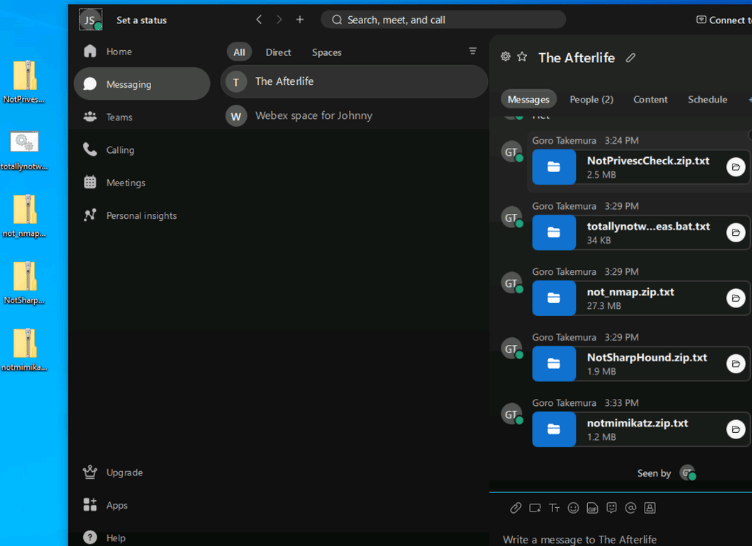
The second way you can use this feature not a bug is Webex Webinars. This assumes the company’s account is paying for this and you are going to use that account to login. First locate the calendar and create a Webinair, it really doesn’t matter when or for how long.
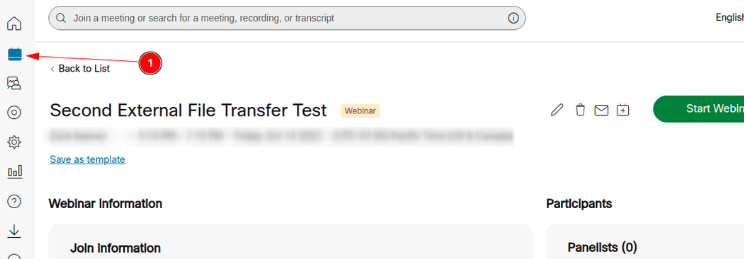
With that created scroll down a little until you see “Webinar Materials”

This is what you are going to use to transfer the files. Use the same syntax as before. Upload the file as Not_malicious_files.zip.txt and then it should become Not_malicous_files.zip once on the target machine.
To do this login to webex with the same credentials on your host machine, browse to the webinar and upload the file using edit. Once ready select the file by clicking on 1 fie (or however many you uploaded.)

 Ocelot Security