Description
Password spraying is used to see if accounts are using easy to guess or default passwords. There is some initial recon which is going to require you to have a user list of the accounts you want to spray. It is going to require you to perform recon and verify login portals. This can be done with nmap, OSINT, Eyewitness, and some manual browsing of any site you find interesting.
Configuring Burpsuite
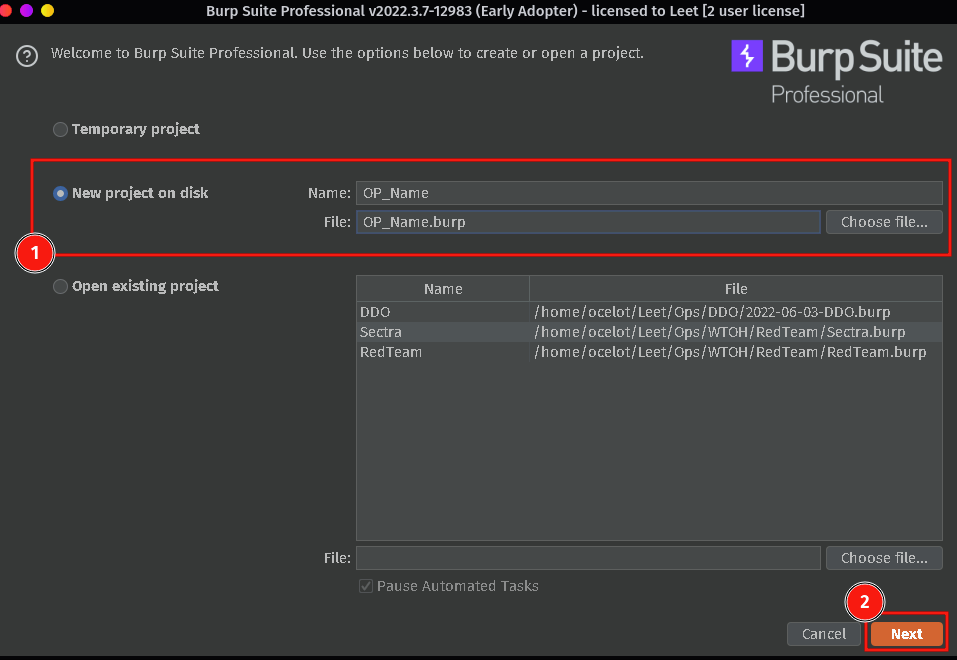
Load up burpsuite (professional) and create a new project on disk, use burp defaults on the next screen, and then start Burp.
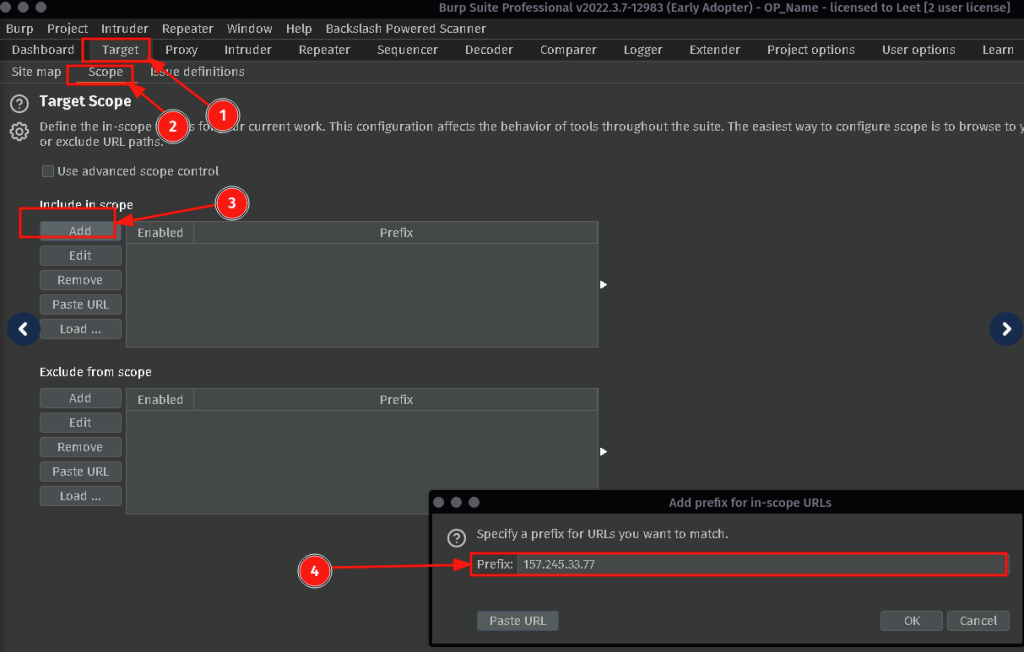
Add targets to your scope. To do this go to the TARGET tab then the Scope tab, click Add, and enter in your targets address(s). This can be the TLD’s or IP address’s that host a login page. For example if the page is on login.app.fakepage.com you could just enter fakepage.com. Add as many address that you see fit. This will simply make it easier to log and read data.
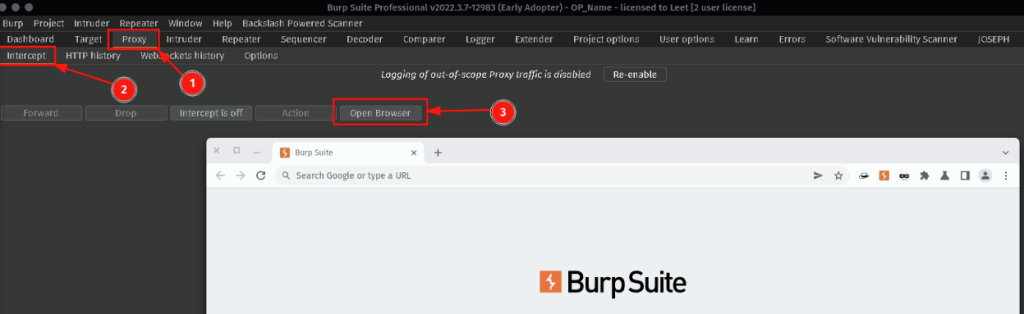
If you are using Burpsuite Professional open the Burpsuite built in browser. Go to the Proxy tab, Intercept, and click on Open Browser. If not, you are going to need to download and configure a foxyproxy web plugin for your browser.
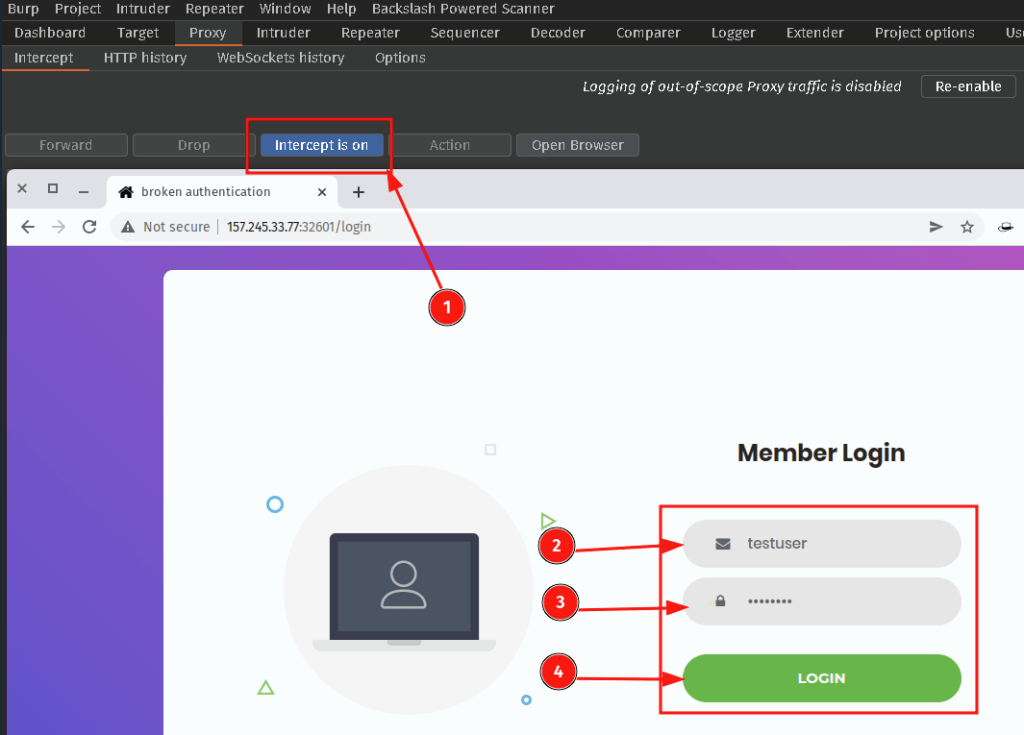
Now navigate to the login page of the targets website. Turn Intercept to ON and enter in testuser and testpass into the input fields then click LOGIN. NOTE: In order for this attack to work correctly, the login page MUST have both a username field and password field on the same page.
Once you hit LOGIN minimize the browser and look at the Proxy Intercept page. You are looking for a field with your username and password. NOTE: You may need to press FORWARD several times to see this request. Once you see it Right Click and select Send To Intruder.
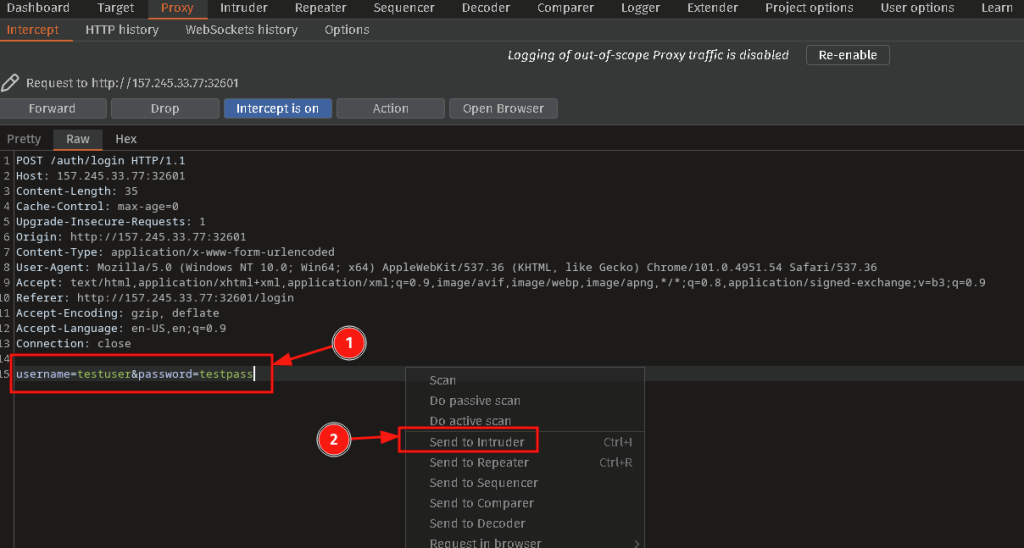
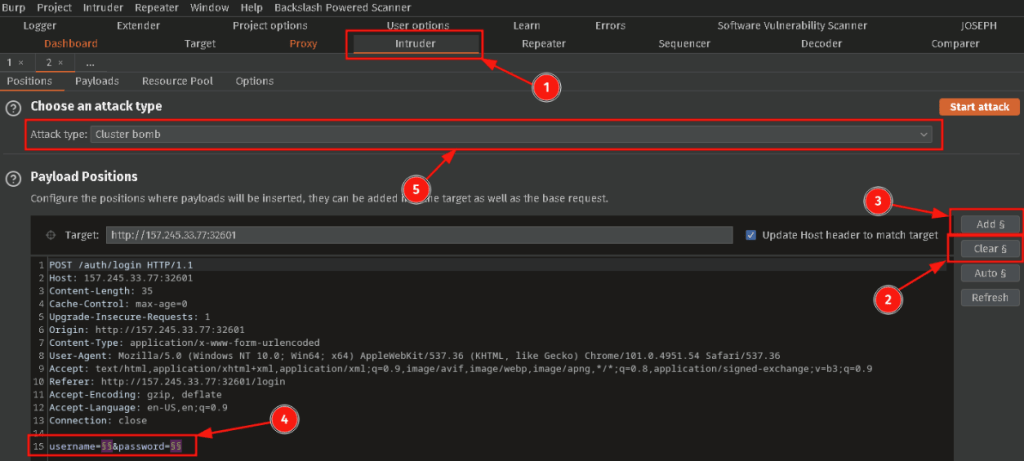
Navigate to the Intruder tab and verify that you see the testuser and testpassword. Press the Clear § button, and then use the Add § button to insert that special character around your username and password. Delete the testuser and testpassword so all that you are left with are 4 § signs. Set the Attack Type to Cluster Bomb.
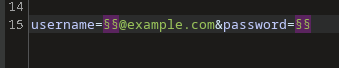
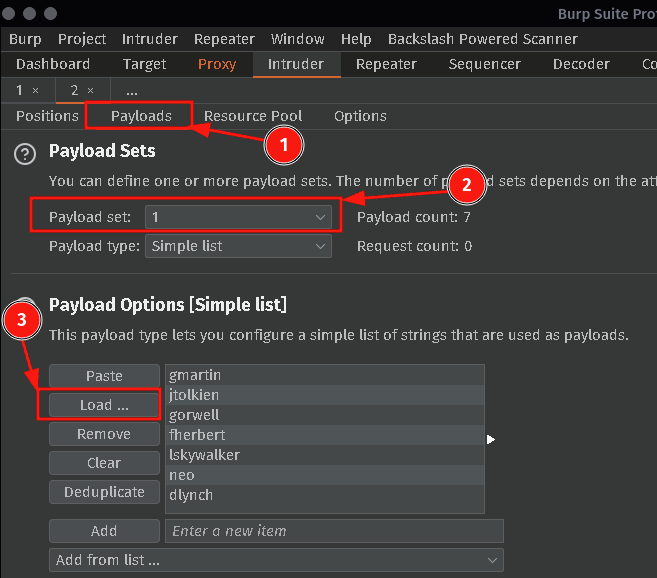
Select the Payloads tab and load in a list of usernames that you recovered from recon. You can also Paste in names you have found or Add some manually. Ensure the Payload Set is 1. Depending on the login page you are either going to enter a direct username, or a username@example.com. Either way I prefer to load in the usernames and append the @example.com in the Positions Tab if it is required. (sometimes the login page will even just give you the syntax if you submit a blank request)
Select Payload Set 2 and add in some common passwords. I will usually start with the current and previous season with the year, as well as some other very common bad passwords.

Select the Options tab, scroll all the way to the bottom and Select from Redirections, Follow Redirections Always and check the Process cookies in redirectors box.
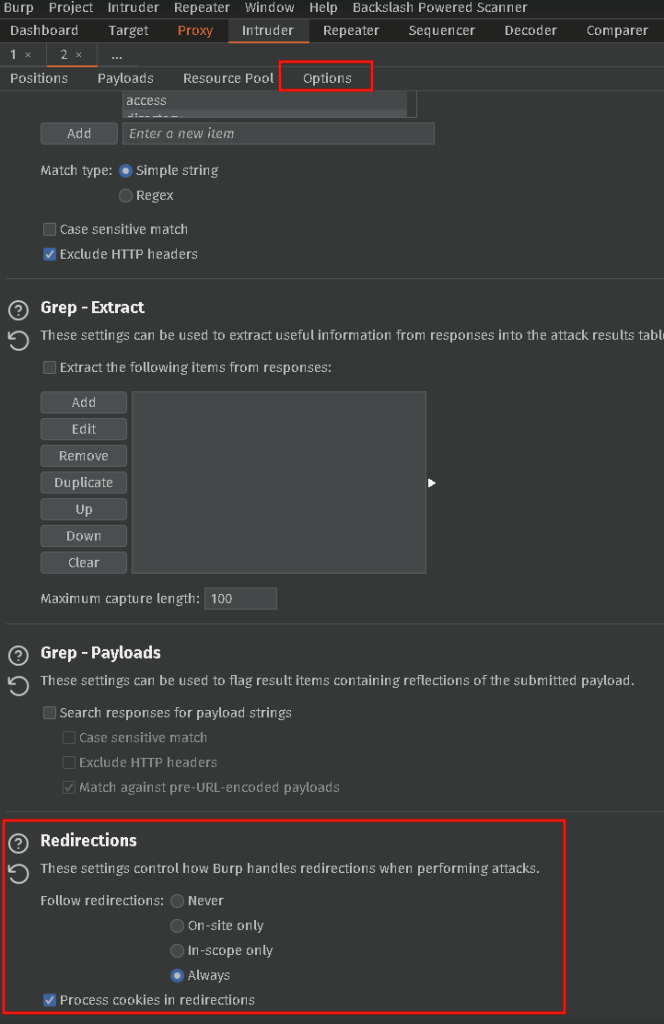
Now Double Check Everything it is very easy to lock out accounts which we do not want to do. Once you are satisfied everything looks correct head back to the Positions tab and START ATTACK.
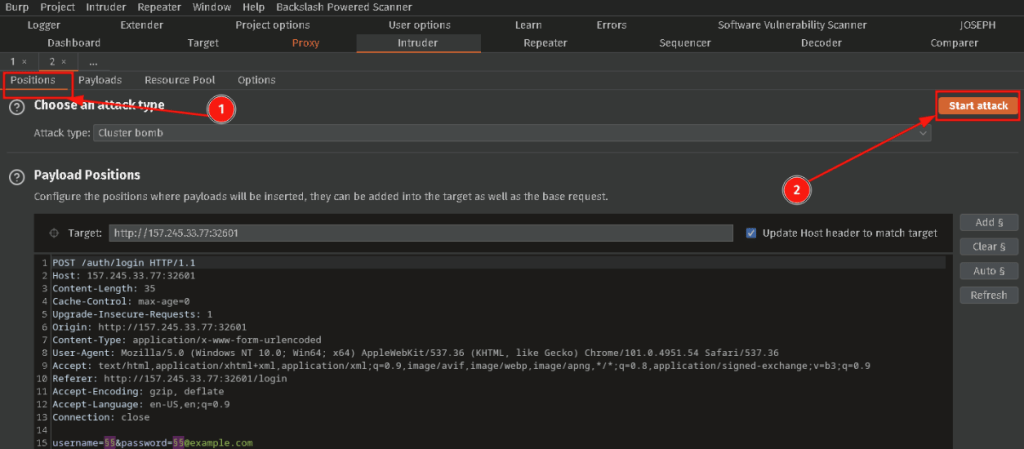
Monitoring the attack
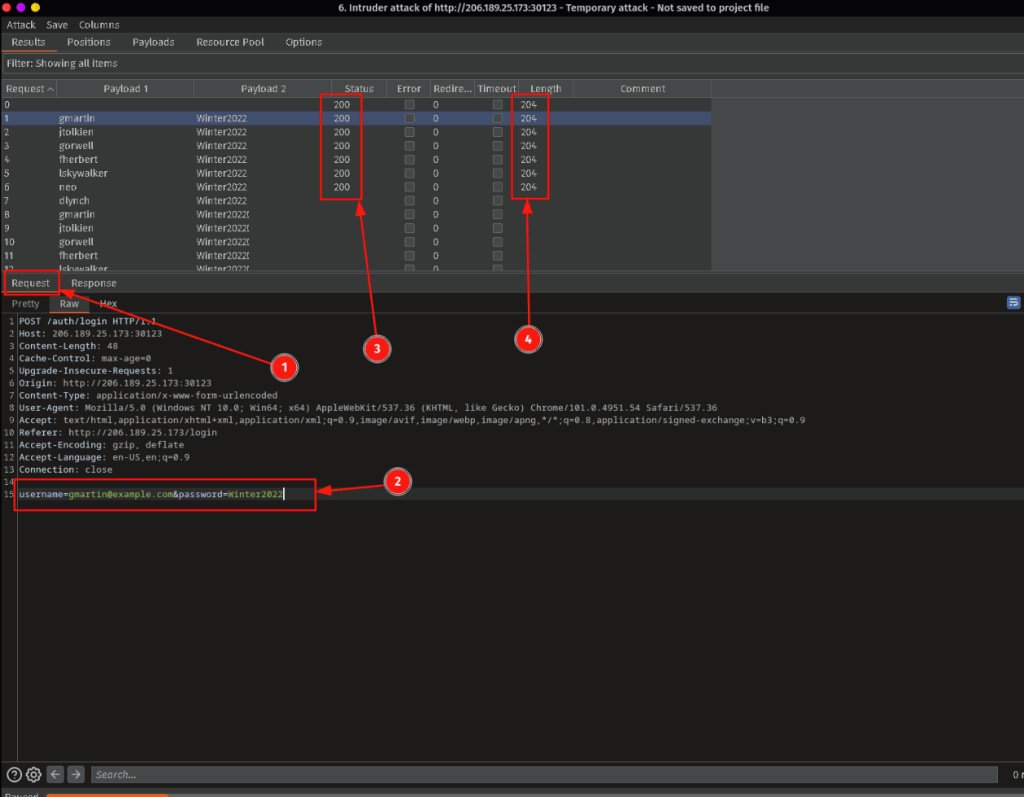
We are looking for a few things here in the Requests tab we are looking at our Username and Password and making sure that they are being sent in the correct format. (ie: username = gmartin@example.com password = Winter2022) Also monitor the Status, a 200 indicates that our request is being set to a valid web server. Also monitor the Length (as well as the Redirects) they both could be indicators that we have a correct password. In this example if a usernames Length returned 500 while the others were 204, that would be a good indicator of a successful login, or a locked account.
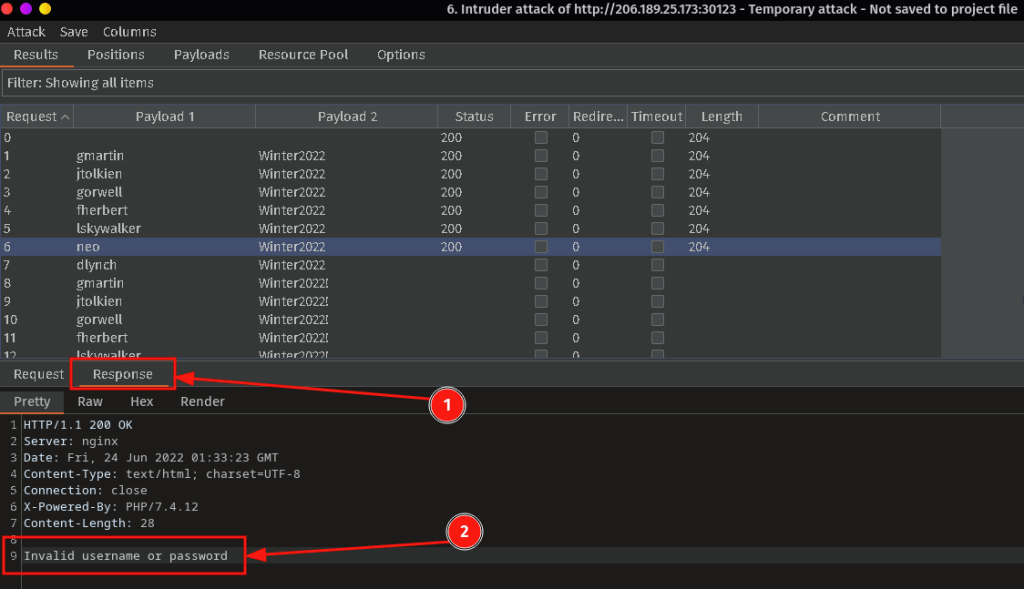
You also need to be monitoring the Response tab. It will indicate both successful logins and will also locked accounts. If you want a view of what the response looks like in a browser you can select the Render tab.
During the engagement you may decrease the time between requests in the resource pool once you are not locking accounts. You also may need to play around with the username syntax ie: first name/last initial, first initial last name, first initial last initial, and also change the @example.com if you are not getting any successful logins.
 Ocelot Security