All posts by Ocel0t

Module 5 Labs 1-2

Objective: Extract and research information based on the vulnerabilities discovered in the previous recon stages. This includes finding more information on the following:

  • Network vulnerabilities
  • IP and Transmission Control Protocol/User Datagram Protocol (TCP/UDP) ports and services that are listening
  • Application and services configuration errors/vulnerabilities
  • The OS version running on computers or devices
  • Applications installed on computers
  • Accounts with weak passwords
  • Files and folders with weak permissions
  • Default services and applications that may have to be uninstalled
  • Mistakes in the security configuration of common applications
  • Computers exposed to known or publicly reported vulnerabilities

Machines Used:

  • Windows 10
  • Windows Server 2019
  • Parrot OS

Applications/Tools/Database Overview:

  • Vulnerability Databases
    • Common Weakness Enumeration (CWE)
    • Common Vulnerabilities and Exposures (CVE)
    • National Vulnerability Database (NVD)
  • Vulnerability Assessment Tools
    • OpenVAS
    • Nessus
    • GFI LANGuard
    • Nikto

Applications/Tools/Databases Used:

Vulnerability Databases

Overview: There is a wide variety of searchable databases that can provide you with information on flaws that have already been found, cataloged, and scored. This information includes the version of the affected software/hardware and how it was exploited. 

Name: Common Weakness Enumeration (CWE)

Objective: Perform Vulnerability Research in Common Weakness Enumeration (CWE)

Function: Similar to the OWASP top 10, this is a website that highlights and categorizes the most common vulnerabilities. It provides background information, consequence, likelihood of exploitation, and even examples of how it’s done. 

Website: https://cwe.mitre.org

Results: A good place to research the most current techniques that hackers are using. 

Name: Common Vulnerabilities and Exposures (CVE)

Objective: Perform Vulnerability Research in Common Vulnerabilities and Exposures (CVE)

Function: An accessible and searchable database that provides organization and exchange of information. It is free to use and allows security researchers to share information on found vulnerabilities. 

Website: https://cve.mitre.org/

Results: Provides easy to use structure to search for known vulnerabilities in an easy format. CVE-<Year>-<XXXXX>

Name: National Vulnerability Database (NVD)

Objective: Perform Vulnerability Research in National Vulnerability Database (NVD)

Function: A Government run repository for vulnerability management data that catalogues vulnerabilities and appies a base score ranking. It provides the CVE number and also provides the description, severity, and references of the vulnerability. The site also includes security checklists, and common misconfigurations to help security professionals. 

Website: https://nvd.nist.gov/

Results: Upon searching for a CVE you receive a score, looking into the score details you can see how severe an impact the vulnerability has on the affected system. The higher the score the easier it is to exploit and the higher an impact it will have on the system. You can narrow your search down to a single specific service, the lab here uses the example of searching for “smb”. 

Vulnerability Assessment Tools

Overview: Use assessment tools to map your network and identify any weaknesses or vulnerabilities. 

Name: OpenVAS

Objective: Perform Vulnerability Analysis using OpenVAS

Function: The OpenVAS scanner combines several tools and services that will perform a vulnerability scan and allow you to manage them from a GUI dashboard. By using unauthenticated testing, authenticated testing, various high level and low-level Internet and industrial protocols, performance tuning for large-scale scans it provides a high level overview of where you need to tighten up your controls. 

Commands and Options: Simply start the OpenVAS service and navigate to the dashboard in your web browser (Default address is https://127.0.0.1:9392). From here you can perform an automated scan on your network which displays the results with the vulnerability name and the CVSS rating number. 

Results: The report that is generated from the scan is linked to the several vulnerability databases previously mentioned. This scan is easily performed and the results give you details on how to better secure your system.

Name: Nessus

Objective: Perform Vulnerability Scanning using Nessus

Function: Another scanning tool, however Nessus can be used for compliance assessments and configuration management. 

Commands and Options: Like OpenVAS, you navigate to the browser based GUI that sits on the local host port 8834. From here you are presented with a dashboard where you can write policies and test the network against the policy you just wrote. Nessus also provides other services like malware scanning and analysis as well as some web application testing tools. 

Results: A more robust scan than OpenVAS, Nessus provides many features to tailor your scan to the environment you are in. It also formats the scan into a professional looking template that can be presented to C-suites and executives. The scan in the lab highlighted SNMP vulnerabilities that were found in the network, and gave remedies on how to fix the issue. 

Name: GFI LANGuard

Objective: Perform Vulnerability Scanning using GFI LanGuard

Function: A network auditing, patch management and vulnerability scanning tool that is designed to assess the security of the network. 

Commands and Options: GUI based accessed by using the executable file, you input the desired IP address or range and select scan. 

Results: A rather frustrating experience from getting the key for a 30 day trial to the actual scan taking over an hour this was the weakest scanning tool in the labs. It does provide similar results as the previous tools however I found the interface clunky and dated. The interface is busy and cluttered and I found navigating it rather difficult.

Name: Nikto
Objective: Perform Web Servers and Applications Vulnerability Scanning using CGI Scanner Nikto

Function: Nikto is an Open Source web server scanner that finds potential problems and security vulnerabilities including:

  • Server and software misconfigurations
  • Default files and programs
  • Insecure files and programs
  • Outdated servers and programs

    Webpage: https://cirt.net/nikto2-docs/

Commands and Options: 

Basic Syntax

  • nikto <options>

    Basic Scan

  • nikto -h 192.168.0.1

    Options While Scan is Taking Place

SPACE – Report current scan status

v – Turn verbose mode on/off

d – Turn debug mode on/off

e – Turn error reporting on/off

p – Turn progress reporting on/off

r – Turn redirect display on/off

c – Turn cookie display on/off

o – Turn OK display on/off

a – Turn auth display on/off

q – Quit

N – Next host

P – Pause

A Brief Synopsis of Options

Featured Options as Presented in the Lab

  • Tuning – A tuning scan can be used to decrease the number of tests performed against a target. By specifying the type of test to include or exclude, faster and focused testing can be completed. This is useful in situations where the presence of certain file types such as XSS or simply “interesting” files is undesired.
  • Cgidirs – Scans the specified CGI directories; users can use filters such as “none” or “all” to scan all CGI directories or none).

Results: Scanning a webpage with Nikto will result in a list of possible lines of attack, running services, and misconfigurations. Unfortunately the lab does not go into any details on what the output actually means. This tool could be featured in the enumeration stage as it does just that, although it could be noted that it provides full support for integration with Nessus. 

Precautions: Using the websites for vulnerability searching is perfectly legal and highly recommended. When using the other tools it is important to get the exact level of scan to do. Some of the methods are pretty extreme and could slow down or even cripple a network. Nikto is designed specifically for web servers so be sure to only use it on ones you have the permission to. 

Countermeasures/Mitigation: I think all of these tools are essentially counter and mitigation tools. An important note is that it often falls on the security professional to keep up to date with the emerging threats, and it is their responsibility to check these websites daily and conduct the scans regularly. 

Personal Reflection: The websites and tools featured are really powerful resources to use when analyzing the vulnerabilities on a network. The only real issue was with the GFI LanGuard but other than that I think it was a positive exercise. I think that there could have been some more time spent with the tools and how to actually analyze the results rather than just scanning a super insecure server where it lights up like a Christmas tree. One tool I think is missing from here is searchsploit.  It is a metasploit module that provides the functionality of searching through all of the provided databases and then gives you the exploit path to follow if you happen to find something that is vulnerable. 

Works Cited (MLA):

EC-Council. Certified Ethical Hacker (CEH) Version 11 eBook w/ iLabs (Volumes 1 through 4). International Council of E-Commerce Consultants (EC Council), 2020. [VitalSource Bookshelf].

Module 4 Lab 7

Objective: Use a range of tools to find as much information as possible about the target network’s systems. 

Machines Used: 

  • Windows 10
  • Windows Server 2019
  • Parrot OS

Applications/Tools Used:

  • Global Network Inventory
  • Advanced IP Scanner
  • Enum4linux

Name: Global Network Inventory

Objective: Enumerate Information using Global Network Inventory

Function:  Used as an audit scanner inside of a network, can scan a range of addresses and will output raw hardware data, AD information, running services, installed software, share drives, memory, and other info. 

Commands and Options: GUI BASED

Example Usage:

  1. Under the Audit Scan Mode section, click the Single address scan radio button, and then click Next.
    1. You can also scan an IP range by clicking on the IP range scan radio button, after which you will specify the target IP range.
  2. Under the Single Address Scan section, specify the target IP address in the Name field of the Single address option; Click Next.
  3. The next section is Authentication Settings; select the Connect as radio button and enter the Windows Server 2016 machine credentials, and then click Next.
  4. Inspect the scan summary to see what you can find.

Results: The results from the scan are very detailed but as an attacker it is doubtful that you would have not only this level of access but also have this tool installed on the system. It would provide some really good information for a systems administrator. 

Name: Advanced IP Scanner

Objective: Enumerate Network Resources using Advanced IP Scanner

Function: The program shows all network devices, gives you access to shared folders, provides remote control of computers.

Commands and Options: GUI Based

Example Usage:

  1. In the IP address range field, specify the IP range. Click the Scan button.
  2. The scan results appear, displaying information about active hosts in the target network such as status, machine name, IP address, manufacturer name, and MAC addresses, as shown in the screenshot.
  3. Right-click any of the detected IP addresses to list available options.

Results: Like the previous tool this seems more useful to an auditor or admin doing an inventory. But rather than one host this seems to be more designed around a corporate network. 

Name: Enum4linux

Objective: Enumerate Information from Windows and Samba Hosts using Enum4linux

Function: It is described as a wrapper script that combines the rpcclient, net, nmblookup and smbclient tools. 

Commands and Options:

Basic Syntax:

  • enum4linux <options> <IP Address>
  • -u <user> specifies the username
  • -p <pass> specifies the password

Results: A nice script that automates some enumeration using the default built in samba tools and lists out the information in an easy to read format. 

Precautions: The same as labs 1-6

Countermeasures/Mitigation: The same as labs 1-6, also try using these tools against your own network if possible.

Personal Reflection: The labs here were good for helping in the understanding of how networks are structured, and what services are running on them. The tools that were selected were a little strange from an attackers perspective, this seemed more focused on auditing and mapping out the network from a systems administrator point of view. For example tools like linPEAS, winPEAS, and CrackMapExec all offer a realistic stealthier approach to enumeration. The “attacks” shown here are loud and should be caught or stopped in seconds.  

Works Cited (MLA):

EC-Council. Certified Ethical Hacker (CEH) Version 11 eBook w/ iLabs (Volumes 1 through 4). International Council of E-Commerce Consultants (EC Council), 2020. [VitalSource Bookshelf].

Module 4 Labs 1-6

Objective: Extract information about the target organization that includes, but is not limited to:

  • Machine names, their OSes, services, and ports
  • Network resources
  • Usernames and user groups
  • Lists of shares on individual hosts on the network
  • Policies and passwords
  • Routing tables
  • Audit and service settings
  • SNMP and FQDN details

Machines Used:

  • Windows 10
  • Windows Server 2019
  • Parrot OS

Applications/Tools Overview:

  • NetBIOS enumeration
    • Windows command-line utilities
    • NetBIOS Enumerator
    • NSE Scripting
  • SNMP enumeration
    • snmp-check 
    • SoftPerfect Network Scanner
  • LDAP enumeration
    • Active Directory Explorer (AD Explorer)
  • NFS enumeration
    • RPCScan and SuperEnum
  • DNS enumeration
    • Zone transfers
    • DNSSEC zone walking
  • RPC, SMB, and FTP enumeration
    • NetScanTools Pro
    • Nmap

Category: NetBIOS enumeration

Overview – NetBIOS stands for Network Basic Input Output System. Windows uses NetBIOS for file and printer sharing. A NetBIOS name is a unique computer name assigned to Windows systems, comprising a 16-character ASCII string that identifies the network device over TCP/IP. The first 15 characters are used for the device name, and the 16th is reserved for the service or name record type.

Applications/Tools:

Name: Windows command-line utilities

Objective: Perform NetBIOS enumeration using Windows command-line utilities

Function: Use the Nbtstat, and Net use Windows command-line utilities to perform NetBIOS enumeration.

Commands and Options:

  • nbstat 
    • Displays NetBIOS over TCP/IP (NetBT) protocol statistics, NetBIOS name tables for both the local computer and remote computers, and the NetBIOS name cache. This command also allows a refresh of the NetBIOS name cache and the names registered with Windows Internet Name Service (WINS). Used without parameters, this command displays Help information.

Syntax

  • nbstat[-aRemoteName][-AIPAddress][-c][-n][-r][-R][-RR][-s][-S][Interval]
    • nbstat -a <IP address> 
      • Displays a remote NetBIOS table
    • nbstat -c 
      • Displays the contents of the NetBIOS name cache 
  • net use 
    •  Connects a computer to or disconnects a computer from a shared resource, or displays information about computer connections. The command also controls persistent net connections. Used without parameters, net use retrieves a list of network connections.

Results: Extracting NetBIOS information can lead to better knowledge about the connected devices and folders on a network. Using the built in command line interface this can be performed rather stealthily as the attacker does not need to import any tools, and it is all done remotely. 

Name: NetBIOS Enumerator

Objective: Perform NetBIOS enumeration using NetBIOS Enumerator

Function: NetBIOS Enumerator is a tool that enables the use of remote network support. 

Commands and Options: This is a GUI tool that does everything for you. It can map out a local network that has open connections. It would need to be installed locally if you wanted to do any kind of enumeration. 

Results: A not very practical example, but it does provide a nice format to look at when the scan is complete. 

Name: nmap

Objective: Perform NetBIOS enumeration using an NSE Script

Function: This is another one of nmaps scripting abilities as previously mentioned in the module 3 labs. What is on display here specifically is the NetBIOS enumeration capabilities. 

Commands and Options:

    Basic Usage:

  • namp <options> <IP address>

    Example

  • nmap -sU –script nbstat.nse -p 137 10.10.10.10

Results: This will grab the hosts NetBIOSnames, MAC addresses, names of logged on users, and all the names the system thinks it owns.

Other Similar Tools:

  • Global Network Inventory
  • Advanced IP Scanner
  • Hyena
  • Nsauditor Network Security Auditor

Category: SNMP enumeration

Overview – SNMP enumeration uses SNMP to create a list of the user accounts and devices on a target computer. 

Name: snmp-check 

Objective:  Perform SNMP enumeration using snmp-check

Function: Use the tool to enumerate SNMP services on the target IP address.

Commands and Options:

Go down this rabbit hole if you see that port 161 is open (Default SNMP)

Results: This doesn’t mention anything about SNMP versions and how that if a host is running SNMPv3 it no longer uses the community strings that the enumeration is relying on. If the host is running v1 or v2 you can get all kinds of juicy information about the network and the target. System information, User accounts, Network interfaces/IPs, routing tables, processes, shares, and file information. 

Name: SoftPerfect Network Scanner

Objective: Perform SNMP enumeration using SoftPerfect Network Scanner

Function: A GUI based application that can scan a network range. In this case we are specifically looking for the SNMP protocol. 

Commands and Options: Example usage for SNMP

  1. In the Options menu, click Remote SNMP…. The SNMP pop-up window will appear.
  2. Click the Mark All/None button to select all the items available for SNMP scanning and close the window.
  3. To scan your network, enter an IP range in the IPv4 From and To fields (in this example, the target IP address range is 10.10.10.5-10.10.10.20), and click the Start Scanning button.

Results: The output here is the same as the other tools in the lab and displays nearly identical results. It does seem to have some more functionality that is not explored in this section.

Category: LDAP enumeration

Overview – LDAP enumeration allows you to gather information about usernames, addresses, departmental details, server names, etc.

Name: Active Directory Explorer (AD Explorer)

Objective: Perform LDAP Enumeration using Active Directory Explorer

Function: Use this tool to navigate and view AD users and permissions as well as edit them. This is an administrative tool that requires elevated permissions to actually use. The enumeration done here could allow you to create a remote DA and assign all privileges to them. 

Commands and Options: GUI Based

Example Usage

  1. The Connect to Active Directory pop-up appears; type the IP address of the target in the Connect to field (in this example, we are targeting the Windows Server 2016 machine: 10.10.10.16) and click OK.
  2. Now, expand DC=CEH, DC=com, and CN=Users by clicking “+” to explore domain user details.
  3. Click any username (in the left pane) to display its properties in the right pane.
  4. Right-click any attribute in the right pane (in this case, displayName) and click Modify… from the context menu to modify the user’s profile.
  5. The Modify Attribute window appears. First, select the username under the Value section, and then click the Modify… button. The Edit Value pop-up appears. Rename the username in the Value data field and click OK to save the changes.
  6. You can read and modify other user profile attributes in the same way.

Results: This is a powerful administrative tool and if it is installed on your network you need to be aware of the power that it has. 

Similar Tools:

  • Softerra LDAP Administrator
  • LDAP Admin Tool
  • LDAP Account Manager
  • LDAP Search
  • JXplorer

Category: NFS enumeration

Overview – Perform NFS enumeration to identify exported directories and extract a list of clients connected to the server, along with their IP addresses and shared data associated with them.

Name: RPCScan and SuperEnum

Objective: Perform NFS Enumeration using RPCScan and SuperEnum

Function: If you find an open NFS port it is possible to enumerate more information from that shared service. Using two tools built into Parrot OS extract as much information as possible. SuperEnum can scan and search through a file for more detailed enumeration. 

Commands and Options:

RPCscan

  • Python3 rpc-scan.py <IP Address> –rpc

Superenum

  • ./superenum <File>

Results: Using these tools you can verify that the target has NFS running on it, if you happen to find an open port. Using supernum you can then get detailed information on the shares of the system. I think that the lab presented the two tools out of order. 

Category: DNS enumeration

Overview – This process yields information such as DNS server names, hostnames, machine names, usernames, IP addresses, and aliases assigned within a target domain.

Name: Zone transfers

Objective: Perform DNS Enumeration using Zone Transfer

Function: Enumerate the target by testing the DNS capabilities and defense measures in place by attempting a zone transfer. 

Commands and Options:

dig

Usage

  • dig <domain>
  • dig -h (There are far too many options to list)

nslookup

Displays information that you can use to diagnose Domain Name System (DNS) infrastructure.

  • Usage
    • nslookup (puts the cmd line into “live/interactive” mode)
  • set <options> 
    • querytype=soa (retrieves admin DNS zone info)
  • ls <options> <Name Server> 
    • ls -d ns1.bluehost.com (would request a zone transfer)

Results: After retrieving DNS name server information, the attacker can use one of the servers to test whether the target DNS allows zone transfers or not. In this case, the zone transfer was refused for the target domain.

Name: DNSSEC zone walking

Objective: Perform DNS Enumeration using DNSSEC Zone Walking

Function: A technique used to obtain the internal records of the target DNS server if it is not configured properly. This helps you build a network map.

Commands and Options: 

dnsrecon

Usage

dnsrecon <options> <domain> <mode>   

  • -d specifies the target domain
  • -z sets the scanner to DNSSEC zone walk 

Results: Using the DNSRecon tool, the attacker can enumerate general DNS records for a given domain (MX, SOA, NS, A, AAAA, SPF, and TXT). These DNS records contain digital signatures based on public-key cryptography to strengthen authentication in DNS.

Similar Tools:

  • LDNS
  • nsec3map
  • nsec3walker
  • DNSwalk

Category: RPC, SMB, and FTP enumeration
RPC Overview: RPC is an inter-process communication (IPC) mechanism that enables data exchange and invocation of functionality residing in a different process.

SMB Overview: The Server Message Block (SMB) protocol is a network file sharing protocol that allows applications on a computer to read and write to files and to request services from server programs in a computer network. The SMB protocol can be used on top of its TCP/IP protocol or other network protocols. Using the SMB protocol, an application (or the user of an application) can access files or other resources at a remote server. This allows applications to read, create, and update files on the remote server. SMB can also communicate with any server program that is set up to receive an SMB client request.

FTP Overview: The File Transfer Protocol (FTP) is a standard network protocol used to transfer computer files between a client and server on a computer network. FTP is built on a client-server model architecture and uses separate control and data connections between the client and the server.

Name: NetScanTools Pro

Objective: Perform RPC and SMB Enumeration using NetScan Tools Pro

Function: NetScan Tools Pro was previously covered in Module 3, the features used here is the RPC information tool and the SMB scanner tool

Commands and Options: Like last time this application uses a GUI based format where you select what you want to do from a menu and input the IP range you want to scan. 

Results: Upon enumeration you can gather detailed information about shared files such as share name, type, remark, path, permissions, and credentials used. You can also get information such as the NetBIOS names, DNS info, SMB versions, and share names. 

Name: Nmap

Objective: Perform RPC, SMB, and FTP Enumeration using Nmap

Function: Again nmap is one of the most widely used and powerful network scanning and enumeration tools there is. 

Commands and Options: The scan shown in the labs really just has you select the default port number for the service you are looking for with  the -p flag. 

Results: This shows that the port is open and what version the service is running. 

Precautions: Enumeration can reveal a ton of information. Even if you have permission to scan a network and perform a security assessment, ensure you document everything you find. If there is something on the network that does not belong to the company that hired you, then you are not entitled to access it. 

Countermeasures/Mitigation: UPDATE AND PATCH. Turn off multicast name resolution, disable NetBIOS over TCP/IP. Only use SMNPv3 and ensure only the highest level users have access. Use and apply ACL’s. Strictly monitor SNMP devices that have read/write abilities. Segregate SNMP traffic to a separate management network. Change default settings in AD, remove accounts when an employee leaves the company, have a good password policy. Employ good access control. Use NFSv4, ensure proper file permissions are set. Don’t allow zone transfers. Use DNSSEC and DNS filtering. Turn off the sharing services if they are unnecessary. 

Personal Reflection: I think that this module really could have been combined with the scanning module. Scanning an entire network to see what services are running and then checking version/info on those services should be done at the same time. Breaking it up like this is almost confusing because it has you bouncing around using different tools and then going back to one you just had open. I think a better way could be to stick with one or two tools and then work your way through the cyber kill chain. 

Works Cited (MLA):

EC-Council. Certified Ethical Hacker (CEH) Version 11 eBook w/ iLabs (Volumes 1 through 4). International Council of E-Commerce Consultants (EC Council), 2020. [VitalSource Bookshelf].

Wibjorn. “Developer Tools, Technical Documentation and Coding Examples.” Web. 16 Feb.2021. https://.docs.micorsoft.com

CEH Module 3 Labs 1-6

Objective: Conduct a network scan to analyze vulnerabilities. 

  • Check live systems and open ports
  • Identify services running in live systems
  • Perform banner grabbing/OS fingerprinting
  • Identify network vulnerabilities
  • Draw network diagrams of vulnerable hosts

Machines Used:

  • Windows 10
  • Parrot OS

Applications/Tools Overview:

  • Host Discovery
    • Nmap 
    • Angry IP Scanner
  • Port and Service Discovery
    • MegaPing
    • NetScanTools Pro
    • Nmap
    • Hping3
  • Operating System Discovery
    • Wireshark
    • Nmap Script Engine (NSE)
    • Unicorn Scan
  • Beyond IDS and Firewall
    • Evasion Techniques 
    • Colasoft
    • Hping3
    • Nmap
  • Drawing Network Diagrams
    • Network Topology Mapper
  • Other Scanning Tools
    • Metasploit

Category: Host Discovery   

Name: Nmap 

Objective: Use Nmap to discover a list of live hosts in the target network

Function: Use Nmap to scan the active hosts in the target network using various host discovery techniques such as ARP ping scan, UDP ping scan, ICMP ECHO ping scan, ICMP ECHO ping sweep, etc.

Commands and Options:

Basic Usage

  • nmap <options> <Target IP>

Target IP can be a range of hosts

  • nmap 10.10.10.1-100

The -sn option removes port scanning which may set off IDS alerts and only does host discovery.

  • nmap -sn 10.10.10.16

The -sL (List Scan) and -Pn (no ping) flags skip host discovery entirely or disable it. 

  • nmap -Pn -sL 10.10.10.16

Results: Depending on the options you select, the services running on the hosts, or any firewalls in place can affect the result. Conduct multiple scans to verify your results.

Name: Angry IP Scanner

Objective: Perform Host Discovery Using Angry IP Scanner

Function: Angry IP Scanner is open source and cross platform GUI network scanning tool that resolves host names and running services. It presents this information in an Excel like format. 

Commands and Options: Set a single IP address or a range of addresses. Use the preferences menu to select the type of scan, what ports to scan, and other miscellaneous options. 

Results: The list presented gives you the host name, the associated IP address, and the ports that are open on that host. 

Category: Port and Service Discovery

Name: MegaPing

Objective: Perform Port and Service Discovery using MegaPing. 

Function: It is a network scanning tool aimed at system administrators to detect hosts and open ports on the network. It will provide information about shared resources, users and groups, trusted domains and gives you a dropdown list of integrated utilities. 

Commands and Options: Select your IP address range and decide what utility from the left hand side of the menu that you want to use. This can be a range or a single host. 

Results: Mega Ping will list out and show the type of connection what port is open and provide a description of the service. This can be saved and printed out as a report. 

Name: NetScanTools Pro

Objective: Perform Port and Service Discovery using NetScanTools Pro

Function: Another GUI based network host/port/service discovery tool. 

Commands and Options: There is a graphical drop down menu to select the type of scan you want to make and it formats the scan on the middle of the screen. When finished it gives you a summary report in a clean readable format.   

Results: The report itself allows you to go into each host and perform various attacks to test the network. The Active Directory tools seem interesting however they were not included in the lab. 

Name: Nmap

Objective: Explore Various Network Scanning Techniques using Nmap 

Function: Not only can nmap act as a host discovery tool, it also has the ability to deep scan the network for open services and ports. This works by using the built in scripting engine to perform TCP, UDP, OS detection, and can even get specific with tactics like an X-mas scan. 

Commands and Options:

Basic Usage

  • nmap <options> <Target IP>

    <options>

    -sT     (Performs the TCP connect/full open scan, performs a TCP 3-way handshake)

    -v    (Verbose, output scan to the screen)

    -sS     (Performs the stealth scan/TCP half-open scan, the stealth scan involvesresetting the TCP connection between the client and server abruptly before completion of three-way handshake signals, and hence leaving the connection half-open. This scanning technique can be used to bypass firewall rules, logging mechanisms, and hide under network traffic.)

    -sX     (Performs the Xmas scan, the Xmas scan sends a TCP frame to a target system with FIN, URG, and PUSH flags set. If the target has opened the port, then you will receive no response from the target system. If the target has closed the port, then you will receive a target system reply with an RST.)

    -sM     (Performs the TCP Maimon scan, the TCP Maimon scan, a FIN/ACK probe is sent to the target; if there is no response, then the port is Open | Filtered, but if the RST packet is sent as a response, then the port is closed.)

-sA    (Performs the ACK flag probe scan, (The ACK flag probe scan sends an ACK probe packet with a random sequence number; no response implies that the port is filtered (stateful firewall is present), and an RST response means that the port is not filtered.)

-sU    (Performs the UDP scan, just uses UDP with no TCP 3-way handshake)

-sV    (Detects service versions)

-A    (Aggressive, turns on -O, -sV, sC, and –traceroute)

Results: This lab goes pretty in depth with good scanning techniques using nmap. There is some detail provided as to why you are choosing one scan over another but they could have gone into some more depth. As a basic overview of the ways to scan a network this teaches some of the best options to use when using the nmap scanner.

Name: Hping3

Objective: Explore Various Network Scanning Techniques using Hping3

Function: A network scanning and packet crafting tool that sends custom TCP/IP packets and displays the replies. Used to;

  • Test firewall rules
  • Advanced port scanning
  • Test network performance using different protocols, packet size, TOS, and fragmentation.
  • Path MTU discovery
  • Transfer files even with North Korean like firewall rules
  • Remote OS fingerprinting
  • TCP/IP stack auditing

Commands and Options: 

    Basic Usage

  • hping3 <mode> <host> <options>

Results: A deep and thorough tool that really deserves an entire lab to explore its true depth, hping3 enumerates the network. This is done by gathering specific data fields that are returned from the host based on the protocols being used. This data is then formatted into a readable format with port information, service info, tty, id, lengths, flags returned, window sizes. All of this information be used for finding vulnerabilities on the host system being scanned.

Category: Operating System Discovery

Name: Wireshark

Objective: Identify the Target System OS with TTL and TCP Window Size with Wireshark

Function: Wireshark is a network protocol analyzer that allows capturing and monitoring live network traffic. It allows you to analyze the information and save the traffic in .pcap files. Of note is that the traffic capture is raw data.

Commands and Options:

  • Interface Selection
  • Deep Packet analysis
  • OSI breakdown with individual layers capturing unique data
  • Source and Destination IP addresses
  • MAC addresses
  • Provides specific filtering capabilities based on IP address, port number, protocol, TCP/IP streams, HTTP streams, TTL.

Results: The information gathered can be used in this scenario to verify that the TTL matches that of a Linux Ubuntu system. It is noted that this information can be spoofed by an attacker, but it is good information to note down in an investigation.

Name: Nmap Script Engine (NSE)

Objective: Perform OS discovery using Nmap Script Engine (NSE)

Function: Using NSE, you may obtain information such as OS, computer name, domain name, forest name, NetBIOS computer name, NetBIOS domain name, workgroup, system time of a target system.

Commands and Options: 

Usage

nmap –script <script name> <IP address>

This can be done by using just one script

  • nmap –script smb-os-discovery.nse 10.10.10.10 

Or use it in a wild card format that runs everything against the chosen protocol

  • nmap –script smb-\* 10.10.10.10

Results: If you suspect a target has a protocol running on a host that is vulnerable, you can use the nmap scripting engine to enumerate more information about it. Nmap has a deep library of scripts to choose from, the default option -sC can also be used. 

Name: Unicorn Scan

Objective: Perform OS Discovery using Unicorn Scan

Function: Using this tool you are going to determine the operating system of the target based on the TTL of the host response. 

Commands and Options:

Basic Usage

  • Unicornscan <Host Options> <IP Address> <Mode> <Module> <Domain:Ports>

Category: Beyond IDS and Firewall

Name: Evasion Techniques with nmap

Objective: Scan beyond IDS/Firewall using various evasion techniques. 

Function: Use nmap to send crafted packets to avoid being filtered or alerting a system. Use fragmented packets, source port manipulation, mtu specifiers and decoys. These are options pre built into the nmap network analyzer.   

Commands and Options:

Basic Usage

  • nmap <options> <Target IP>
  • -f  -mtu<MTU>

-D <Decoy IP> <Decoy IP2> <…>

-g <port number>

Results: Running a standard nmap scan may not present you with any results if a firewall or IDS is blocking your probes. By using nmaps built in functionality to craft your packets and hide your IP address you might just be able to sneak past the defenses. 

Name: Colasoft

Objective: Create Custom Packets using Colasoft Packet Builder to Scan beyond IDS/FIrewalls

Function: Colasoft lets you create custom packets that can be used to test network security. It provides templates to choose from and allows you to modify and save the crafted design. 

Commands and Options: Example Usage

Open Colasoft

  1. Click on the Adapter icon
  2. Select the adapter to use
  3. To add or create a packet, click the Add icon
  4. In the Add Packet dialog box, select the ARP Packet template, set Delta Time as 0.1 seconds, and click OK.
  5. Inspect the Packet list to view and edit the packet.
  6. Click send.
  7. In the Send Selected Packets window, select the Burst Mode.
  8. Click start.
  9. Watch the scan progress
  10. To export the packet, click Export –> Selected Packets…
  11. Save the file for future reference. 

Results: In this example you can use this packet crafter to flood the ARP table and poison it. This can allow you to view all of the traffic flow on that switch. It can also be used in a MiTM attack by spoofing a grabed MAC address or by telling one of the hosts to connect to it by offering a response. 

Name: Hping3

Objective: Create Custom UDP and TCP Packets using Hping3 to Scan beyond IDS/Firewalls.

Function: Hping3 is a scriptable program that uses the TCL language, whereby packets can be received and sent via a binary or string representation describing the packets.

Commands and Options:

Basic Usage

  • hping3 <mode> <host> <options>

    <mode>

  • -S specifies the TCP SYN request on the target machine

    <options>

  • –udp specifies sending the UDP packets to the target host
  • –rand-source enables the random source mode
  • –data specifies the packet body size
  • -p specifies assigning the port to send the traffic
  • -c is the count of the packets sent
  • –flood: performs the TCP flooding

Results: While monitoring this kind of attack with Wireshark it is easy to see that crafting a packet can easily fool anyone monitoring the traffic. 

Name: Nmap

Objective: Create Custom Packets using Nmap to Scan beyond IDS/Firewalls

Function: Nmap can also be used to scan inside of a network. 

Commands and Options:

Basic Usage

  • nmap <options> <Target IP>

<options>

  • –data [hex string] Sends the binary data (o’s and 1’s) as payloads in the sent packets to scan beyond firewalls.
  • –data-string [string] Sends a regular string as payloads in the sent packets to the target machine for scanning beyond the firewall.
  • –data-length [len] Appends the number of random data bytes to most of the packets sent without any protocol-specific payloads.
  • –randomize-hosts Scan the number of hosts in the target network in random order to scan the intended target that is beyond the firewall.
  • –badsum Send the packets with bad or bogus TCP/UDP checksums to the intended target to avoid certain firewall rulesets.

Results: Much like the previous nmap technique you can use the built in functions to actually craft packets with the –data-length and –data-string functions. 

Category: Drawing Network Diagrams

Name: Network Topology Mapper

Objective:  Draw Network Diagrams using Network Topology Mapper

Function: This tool produces a network diagram that can be used for mapping a network on layers 1-3 and can be used for inventory management. It actually uses Orion which famously was exploited and caused a massive government cybersecurity data breach. It would be interesting to see the level of access that this requires to run. Also what changes have been made since the attack. 

Commands and Options: Example Usage

Open SolarWinds Topology Mapper 

  1. The Network Topology Scan window appears. In the SNMP Credentials section, select the private credential under the Stored Credentials section and public credential under the Discovery Credentials section, and then click Next.
  2. Leave the WMI Credentials and VMWare Credentials section to default and click Next.
  3. The Network Selection section appears. Click the IP Ranges tab in the right-pane, enter the IP address range (10.10.10.3 – 10.10.10.254) in the Start Address and End Address fields, and click Next.
  4. The Discovery Settings section appears. Enter a name under the Scan name field (here, “Network Topology”) and click Next.
  5. The Scheduling section appears. Ensure that Once is selected in the Frequency drop-down menu; under the Execute immediately radio button Yes, run this discovery now is selected; then, click Next.
  6. The Summary section appears; click Discover.
  7. The New Network Scan window appears; the Network Topology Mapper starts scanning the network for live hosts.
  8. The display now shows the entire network.
  9. From this view you can inspect and organize the topology to your deepest desires.
  10. You can also do cool things like remote into a host with RDP(Attack Vector? YES)

Results:  A really neat tool that gives you an easy method of viewing your topology in a very large network, however without proper security measures in place it can be used by an attacker to do all the same. 

Category: Other Scanning Tools

Name: Metasploit

Objective: Scan a Target Network using Metasploit

Function: The Metasploit framework is a versatile tool where you can add modules and carry out an entire cyber killchain attack from the recon to establishing a c2. This task has you start a SQL server that will store nmap information so you can craft your attack based on information gathered in the recon phase and then automates the process by importing the scan into the msf_db. 

Commands and Options:

Example Attack

  1. Start postgresql 
    • service postgresql start
  2. Start msf
    • msfconsole
    • Verify connection to the server
    • db_status
  3. Scan the network with nmap
    • nmap -Pn -sS -A -oX Test 10.10.10.0/24
  4. Import the scan to  your database
    • db_import Test
  5. View information gathered from the scan
    • hosts
    • services
    • db_services
  6.  Look for open services/ports in the hosts that were found in the host discovery
    • use auxiliary/scanner/portscan/syn
      1. set INTERFACE 
      2. set PORTS 
      3. set RHOSTS 
      4. set THREADS 
      5. run           
    • use auxiliary/scanner/portscan/tcp 
      1. hosts -R
      2. run
    • use auxiliary/scanner/smb/smb_version
      1. set RHOSTS 10.10.10.5-20
      2. set THREADS 11
      3. run
    • use auxiliary/scanner/ftp/ftp_version
      1. set RHOSTS
      2. run
      3. hosts
  7. Export the information to a .csv
    • hosts -o /root/Desktop/Metasploit_Scan_Results.csv

Results: The results presented in this give you more than enough information to research where you can check for things like out of date versions to open and valuable services that are running on an entire network. 

Personal Reflection: 

Similar to the previous modules this series of labs ranges from great tools to repetitive exercises that do not further the understanding of the general concepts that are presented. The format of host discovery to evasion is a nice way to move through the scanning concepts however the explanations given are brief and the amount of information is overwhelming. As an overview of high level concepts, this works as a good introduction to scanning. Nmap is a great tool and I am happy for its inclusion, but I wish it was all kept together rather than bouncing around between other tools. The Metasploit lab could have been greatly expanded on and I do not think that the lab presented you with nearly enough information to have any idea exactly what you are doing. The hping3 was a nice lab that went into good detail on what you are doing and how to use the tool. The other labs were too short or did not seem very relevant. Packet shaping is a cool concept but I do not think the colasoft lab explored it well. The topology mapper is a neat tool but I don’t really get its inclusion because it’s not like as an attacker you are going to install this on a host. 

Works Cited (MLA):

EC-Council. Certified Ethical Hacker (CEH) Version 11 eBook w/ iLabs (Volumes 1 through 4). International Council of E-Commerce Consultants (EC Council), 2020. [VitalSource Bookshelf].

CEH Module 2 Lab 9

Objectives:

  • Footprinting a target using Recon-ng
  • Footprinting a target using Maltego
  • Footprinting a target using OSRFramework
  • Footprinting a target using BillCipher
  • Footprinting a target using OSINT Framework

Machines Used:

  • Parrot OS

Tools Used:

Name: Recon-ng

Objective: Footprint a target using Recon-ng

Function: Collect information on a target like IP location information, routing information, business information, addresses, phone numbers, SSNs, DNS information and domain information. Recon-ng is a web recon tool with independent modules. 

Commands and Options:

Results: Using the tool allows you to set specific options and use different modules to gather data on a target. You can also use the tool to store the information into an html file so you can read through it or submit it as a report. 

Precautions: Permission is required to use the tool. 

Countermeasures/Mitigation: ReconNG uses public databases so your best bet is to not use sites, or if you do use a fake name. 

Name: Maltego

Objective: Footprint a Target using Maltego

Function: Maltego is a tool used to gather information for computer forensics, and pentesting. It presents the data in a visually appealing format rather than the typical command line. 
Commands and Options: Once you create an account and select community edition you are presented with this interface.

Use the right side menu (1) to select an entity. Then drag and drop it over into the map (2)

By right clicking you are presented with a drop down menu to extract the specific information you need. Maltego will then dynamically build out a map using public databases with the information you requested. 

Results: Build a map around a target visually. Use easy to use drop down menus to select specific information you are looking for. Build a report and graph of an entire engagement. 

Name: OSRFramework

Objective: Footprinting a target using OSRFramework

Function: Provides a search tool for OSINT tasks. For usernames, DNS lookups, information leaks, deep web searches, etc. 

Commands and Options:

  • usuf.py -n <target> -p <platform>
  • domainfy.py -n <Domain> -t all
  • searchfy.py
  • mailfy.py
  • phonefy.py
  • entify.py

Results: Another useful tool to get usernames domains and ip addresses. 

Name: Bill Cipher

Objective: Footprint a target using BillCipher

Function: This is a tool that is a mash-up of other tools put together that uses an “easy” number format where you just smash a number and it spits out the information you want. It is questionably not all that reliable and a few years out of date. The example that it uses just pings one side of a point to point link and gives you a 2 host /32 subnet. The page scanner is not really an exhaustive list, with Gobuster and an actual directory list ran against the same target there were more directories found with more useful information. This tool is not really teaching anything and seems like a waste of time. 

Commands and Options: 1-22
Results: Similarly, you can use other information gathering options to gather information about the target. Was an actual sentence in the lab. “Page Links” vs. gobuster at 11% complete.

Name: OSINT Framework

Objective: Footprint a Target using OSINT Framework

Function: A simple website that is categorically defined based on your OSINT investigations needs. 

Commands and Options: Clicking 

Results: Usernames, Addresses, Social Networks, forums/Blogs, Dark Web, Threat Intel, Training. Gets you to a good starting place with free resources.  

Precautions: Ensure you have permission to use this tool against a target, some information may be confidential. 

Countermeasures/Mitigation: Blocking ports, limiting social media, using proxy servers, registering domains privately, subnetting, ACL’s, encrypted email, web code satitization. 

Personal Reflection: 

    This lab started off very strong with a good introduction to ReconNG. It is similar to metasploit in that you can load modules into it and target your attack very specifically. It is easy to use and has good results. Maltego is another amazing tool with a good introduction on how to use it and what its capabilities are. The presentation of the tool itself is clean and easy to read. I think it is probably helpful when doing an investigation into something/somebody to look at a visual representation of a big picture. The rest of the tools I thought really fell flat. They are really just less powerful rehashes of more capable tools, but may be helpful for beginners who need something a little more simple to use. The OSINT framework was a nice way to finish it off. It provides a nice way to organize links that are tailored to OSINT investigations. Overall I had fun in the beginning but felt it was a little too long and tedious where it did not need to be, a little more focus on the first two tools would have been nice. 

Works Cited

EC-Council. Certified Ethical Hacker (CEH) Version 11 eBook w/ iLabs (Volumes 1 through 4). International Council of E-Commerce Consultants (EC Council), 2020. [VitalSource Bookshelf].

Certified Ethical Hacker Labs 2-8

Objectives:

  • The objective of the lab is to extract information about the target using web applications and tools.  
  • Including: 
    • Organization Network Information (Employee details, partner details, weblinks, web technologies, patents, trademarks, etc.) 
    • Network Information (Domains, sub-domains, network blocks, network topologies, trusted routers, firewalls, IP addresses of the reachable systems, the Whois record, DNS records, and other related information) 
    • System Information (Operating systems, web server OSes, user accounts and passwords, etc.)

Machines Used:

  • Windows 10
  • Linux Parrot OS

Applications/Tools/Services/Methods Overview

  • Web Service Footprinting 
    • netcraft.com
    • People Searches
    • theHarvester
    • Dark Web Searches (Tor)
    • censys.com
  • Social Network Footprinting
    • theHarvester [Parrot]
    • Sherlock [Parrot]
    • followerwonk.com
  • Website Footprinting
    • ping (Command Line ICMP)
    • website.informer.com
    • Web Data Extractor 
    • HTTrack Website Copier
    • CeWL [Parrot]
  • Email Footprinting
    • eMailTrackerPro
  • Whois Footprinting
    • domaintools.com
  • DNS Footprinting
    • nslookup
    • yougetsignal.com 
    • Dnsrecon [Parrot]
  • Network Fingerprinting
    • arin.net
    • traceroute/tracert
  • Fingerprinting tools
    • Recon-ng
    • Maltego
    • OSRFramework
    • BillCipher
    • OSINT Framework

Detailed Application/Tool/Service Information

Category: Web Services

Name: https://www.netcraft.com

Objective: Find a companies sub domains

Function: The website has a search function that allows you to get detailed site information, and subdomain information on a target. (Resources>Site Report)

Similar tools: Sublist3r, Pentest-Tools Find Subdomains

Results: Site mappings, common names, subdomain, site information

Precautions: Search site may be a watering hole. Any subdomains could be malicious

Countermeasures/Mitigation: Request the removal of this information if it is public. 

Name: https://www.peekyou.com

Objective: Get detailed information on a human target

Function: Enter known information to search public databases for names, addresses, contact details, DoB, photos, videos, profession, income, family, social media profiles, background checks. 

Similar Websites: pipl.com | intelius.com | beenverified.com 

Results: Detailed information on a target

Precautions: Invasion of privacy, some people may feel this is unethical

Countermeasures/Mitigation: Leave a small digital footprint in terms of what you share. Use a fake name where possible. Don’t use social media. Use Mike Bazzells worksheet to delete a lot of personal information. 

Name: theHarvester 

Objective: Gather an email list.

Function: This tool gathers emails, subdomains, hosts, employee names, open ports, and banners from different public sources such as search engines, PGP key servers, and databases. It is found pre-installed on common penetration testing Linux distributions like Parrot and Kali. 

Commands and Options:

Results: The scan will build and list a table based on the options and target selected. 

Precautions: Verify that every network you touch with this tool is in the scope of the engagement. 

Countermeasures/Mitigation: Try to use unconventional name schemas to make it more difficult to scrape. 

Name: Tor

Objective: Gather Information on the Deep/Dark Web.

Function: Tor operates outside of the world wide web and is only accessible through the Tor browser. Users on the browser are “anonymous” and have access to sites like the Hidden Wikki, FakeID, and The Paypal Cent. 

Similar Tools: Exonera Tor | OnionLand Search Engine

Results: Sites offering illegal services are found. 

Precautions: Using Tor legal but it does host illegal content. 

Countermeasures/Mitigation: Protect your identity so that it does not end up for sale on the dark web. You can use dark web searches to check for data breaches before they might be known to the general public. Some tools for sale might offer insight as to what hacking techniques are in vogue. 

Name: https://www.censys.com

Objective: Determine Target OS Through Passive Footprinting

Function: Enter a website into the search engine to get the Operating System of the server without letting the company know you are probing the network. 

Similar Sites: netcraft.com | shodan.io

Results: Basic information can be attained like OS, Protocols, What the server is running.

Precautions: Not many, it is a passive recon using public information. Be careful of links. 

Countermeasures/Mitigation: Ensure the ports on your network that do face the internet are secure. Be aware that the information is out there. Use obfuscation techniques to mask your OS, but remember obfuscation is not security. 

Category : Social Network Footprinting

Name: theHarvseter 

Objective: Gather Employees information from Linked in with theHarvester

Function: This tool gathers emails, subdomains, hosts, employee names, open ports, and banners from different public sources such as search engines, PGP key servers, and databases. It is found pre-installed on common penetration testing Linux distributions like Parrot and Kali. 

Commands and Options: Use the man page from earlier to specify the target and database.

  • -d (Domain)
  • -l (Limit Results)
  • -b (Data Source)
  • Ex: root@parrot[~]#theHarvester -d eccouncil -l 200 -b linkedin

Results: A list of names and their individual role in the company

Precautions: Verify that every network you touch with this tool is in the scope of the engagement.

Countermeasures/Mitigation: Be aware that LinkedIN is a publicly available social media platform and is a high target for reconnaissance. 

Name: Sherlock

Objective: Gather personal information from various social networking sites. 

Function: Sherlock is a tool written in python that is used to gather information on a target over various social networking sites. 

Commands and Options:

Results: The output displays a list of associated sites and a URL that is attached to the searched target. 

Other Tools: Social Searcher | UserRecon

Precautions: Ensure you have permission to search the individual, it is unethical to search without someone’s knowledge and permission. 

Countermeasures/Mitigation: Leave a small digital footprint in terms of what you share. Use a fake name where possible. Don’t use social media. Use Mike Bazzells worksheet to delete a lot of personal information. 

Name: https://www.followerwonk.com

Objective: Gather Information Using Followerwonk

Function: It is a tool to gather information about Twitter followers. It provides where they are, what they Tweet and can perform an analytical assessment on them. 

Similar Sites: hootsuite.com | sysomos.com

Results: Can provide good information on the posture and attitude of a company.

Precautions: None really, it is using public non-invasive methods. 

Countermeasures/Mitigation: Be aware of the consequences of following Twitter users and liking Tweets.

Category: Website Footprinting

Name: ping

Objective: Gather Information About a Target Website Using Ping

Function: You can determine if a host is up by using the ping command line utility. Ping statistics can provide more insight as to how many hops away a target is, the largest packet that they accept, verification of an IP address. 

Commands and Options:

Results: Able to identify that the host on the network is up and how close it is.

Precautions: Ensure you have permission to test the network, if any disruptions happen you may be legally prosecuted. 

Countermeasures/Mitigation: Disable ICMP on hosts in a network that do not need it. 

Name: https://website.informer.com

Objective: Gather Information About a Target Website Using Website Informer

Function: An online tool that gathers information such as a website’s traffic rank, daily visitors, page views, DNS servers, Whois records. 

Similar Tools: Burp Suite | Zaproxy

Results: Provides good information about who created the site, when it expires, the Hosting Company, Registrar, IPs, DNS, and associated email addresses. 

Precautions: As usual be cautious of links, the information provided may be intentionally misleading. 

Countermeasures/Mitigation: Disclose as little information as possible when creating a website.

Name: Web Data Extractor 

Objective: Extract a Company’s Data Using Web Data Extractor.

Function: Use the tool to extract data information like Session, Meta tags, emails, phone numbers, URLs and store it in an offline easy to read format. 

Guide for Usage: 

  1. After installation, launch Web Data Extractor from Desktop.
  2. The Web Data Extractor main window appears. Click New to start a new session.
  3. The Session settings window appears; type a URL (here, http://www.certifiedhacker.com) in the Starting URL field. Check all the options, as shown in the screenshot, and click OK.
  4. Click Start to initiate the data extraction.
  5. Web Data Extractor will start collecting information (Session, Meta tags, Emails, Phones, Faxes, Merged list, URLs, and Inactive sites).
  6. Once the data extraction process is completed, an Information dialog box appears; click OK. 
  7. View the extracted information by clicking the tabs.
  8. Select the Meta tags tab to view the URL, Title, Keywords, Description, Host, Domain, page size, etc.
  9. Select the Emails tab to view information related to emails such as Email address, Name, URL, Title, etc.
  10. Select the Phones tab to view the Phone, Source, Tag, URL, etc.
  11. Check for more information under the Faxes, Merged list, URLs, and Inactive sites tabs.
  12. To save the session, choose File and click Save session.
  13. Specify the session name (here, certifiedhacker.com) in the Save session dialog box and click OK.
  14. Click the Meta tags tab, and then click the floppy icon.
  15. An Information pop-up may appear with the message You cannot save more than 10 records in Demo Version; click OK.
  16. The Save Meta tags window appears. In the File name field, click on the folder icon, select the location where you want to save the file, choose File format, and click Save.

Similar Spiders: ParseHub | SpiderFoot

Results: A nice searchable file with site information that is organized. 

Precautions: Ensure you have permission to use this tool it may slow down or break the web server. 

Countermeasures/Mitigation: Do not allow sensitive data on your website even for a second because someone could use a tool like this and keep it forever. 

Name: HTTrack Web Site Copier

Objective: Mirror a website to fingerprint it thoroughly. 

Function: Allows you download it locally so you can access and analyze all directories, HTML, images, and any files. 

Guide for Usage: 

  1. Launch HTTrack 
  2. The WinHTTrack Website Copier window appears. Click OK in the pop-up window, and then click Next > to create a New Project.
  3. Enter the name of the project (here, Test Project) in the New project name: field. Select the Base path: to store the copied files; click Next >.
  4. Enter a target URL (here, http://www.certifiedhacker.com) in the Web Addresses: (URL) field and click Set options….
  5. WinHTTrack window appears, click the Scan Rules tab and select the checkboxes for the file types as shown in the following screenshot; click OK.
  6. Click the Next > button.
  7. By default, the radio button will be selected for Please adjust connection parameters if necessary, then press FINISH to launch the mirroring operation. Check Disconnect when finished and click Finish to start mirroring the website.
  8. Once the site mirroring is completed, WinHTTrack displays the message Mirroring operation complete; click on Browse Mirrored Website.

    Similar Tools: NCollector Studio | Cyotek WebCopy

Results: You can now test anything you need without damaging the integrity of the site. Be aware any changes to the site made after you mirror it will not copy over. 

Precautions: Ensure you have permission. 

Countermeasures/Mitigation: Understand that attackers are going to have plenty of time to find a way in and may not alert you when they do. Perform annual penetration tests. 

Name: CeWL

Objective: Gather a wordlist from the Target Website Using CeWL.

Function: CeWL can use a spider to crawl a website and put together a list so you can craft a specific attack using known information. 

Commands and Options:

Results: A unique wordlist from the target website is created. (can be directly written to a file with the -w flag)

Precautions: Entering a password to login as someone other than yourself without permission is illegal. 

Countermeasures/Mitigation: Use complex passwords and non specific usernames. 

Category eMail Footprinting

Name: eMailTrackerPro

Objective: Gather Information about a Target by Tracing Emails using eMailTrackerPro

Function: Use email headers to gather details of the sender, routing information, addressing scheme, date, subject, and recipient. 

Guide for Usage: 

  1. launch the eMailTrackerPro.
  2. To trace email headers, click the My Trace Reports icon from the View section.
  3. Click the Trace Headers icon from the New Email Trace section to start the trace.
  4. A pop-up window will appear; select Trace an email I have received. Copy the email header from the suspicious email you wish to trace and paste it in the Email headers: field under Enter Details section.
  5. For finding email headers, open any web browser and log in to any email account of your choice; from the email inbox, open the message you would like to view headers for.
  6. Copy the entire email header text and paste it into the Email headers: field of eMailTrackerPro, and click Trace.
  7. The My Trace Reports window opens.
  8. The email location will be traced in a Map (world map GUI). You can also view the summary by selecting Email Summary on the right-hand side of the window. The Table section right below the Map shows the entire hop in the route, with the IP and suspected locations for each hop.
  9. To examine the report, click the View Report button above Map to view the complete trace report.
  10. The complete report appears in the default browser.

Similar Tools: Infoga | Mailtrack 

Results: Gather good information on a target’s location, activity, contact information.

Precautions: Ensure you have permission to use this tool against a target, some information may be confidential. 

Countermeasures/Mitigation: Use an email service that offers end to end encryption. Use email filtering to filter suspicious emails. Educate employees to not open suspicious emails. 

Category: Whois Footprinting

Name: https://whois.domaintools.com

Objective: Perform whois lookup with domain tools

Function: Use the website search tool to get information about a specific domain. Including information about the registrant, country, dates, name servers, IP addresses, history, and status. 

Similar Sites: SmartWhois | Batch IP Converter

Results: Good information if you need to know details about the owner of a site, easy to use.

Precautions: None

Countermeasures/Mitigation: Use a fake name when registering a website, keep up to date with when your domain expires.

Category: DNS Footprinting

Name: nslookup

Objective: Gather DNS information using nslookup command line utility and online tool, Perform reverse DNS lookup using reverse IP domain check and DNSRecon.

Function: nslookup is a command-line utility that can be used to query the DNS server to obtain a domain name or IP address mapping. 

Commands and Options:

  • $ nslookup  
    • brings the intera­ctive mode
  • $ > <domain> 
    •  query dns server for domain
  • $ > <ip_ad­dress> 
    • reverse dns lookup
  • $ > server <ip_ad­dress or domain> 
    •  change the default (current) DNS server to ip_address or domain
  • $ > set root=d­nss­erver 
    •  makes the root DNS server the default DNS server for the query session
  • $ > domain dnssever 
    •  show the IP address of the host domain, but query dnsserver for the inform­ation
  • $ > set type=x 
    • determines the type of DNS record that the DNS server will use to answer the query (x = DNS record type)
  • $ > set recursive 
    •  query other DNS servers if the default server does not have the inform­ation
  • $ > ls -a domain 
    •  list all canonical (true) names and aliases in domain
  • $ > ls -h domain 
    •  list HINFO (CPU type and operating system) for domain
  • $ > ls -s domain 
    •  list the well-known services available on domain
  • $ > ls -d domain 
    • list all available records for the domain. Includes all DNS record types
  • $ > ls -t [type] domain 
    • list all DNS TYPE records for the domain
  • $ > exit 
    • quit the intera­ctive mode

Results: Use nslookup to get information about a DNS server, by pretending to be another site you can get the authoritative name server to focus your attention on. 

Precautions: Setting your DNS server manually can result in connecting to a compromised server. 

Countermeasures/Mitigation: Do not allow unsolicited DNS responses. Do not allow queries that are very close together. Drop unsolicited queries. Force the DNS server to prove it is not spoofed. Use ACL’s. 

Name: DNSRecon

Objective: Perform Reverse DNS Lookup using Reverse IP Domain Check and DNSRecon.

Function: Use yougetsignal.com to perform a reverse lookup and get the domain IP address that can be used with dnsrecon. Then use dnsrecon to locate a PTR record for those IP addresses. 

Commands and Options:

Results: The output of the search matches an ip address to a domain name to verify any domains that might be on a subnet.

Precautions: Ensure you have permission. 

Countermeasures/Mitigation:  Do not allow unsolicited DNS responses. Do not allow queries that are very close together. Drop unsolicited queries. Force the DNS server to prove it is not spoofed. Use ACL’s. 

Category: Network Footprinting

Name: https://arin.net/about/welcome/region

Objective: Locate a Network Range

Function: Use the website tool to enter an IP address of a target organization. 

Results: You will get information about the network range, type, and registration information. 

Precautions: None

Countermeasures/Mitigation: You will show up on this database if you register the IP. 

Name: tracert/traceroute

Objective: Perform Network Tracerouting in Windows and Linux Machines.

Function: Identify the path and hosts between the source and destination. Get IP addresses to map the network topology of the organization. Extract information about the network topology, trusted routers, firewall locations. 

Commands and Options:

Results: A good map of a network with verified hosts along the way

Precautions: Permission required to use. Proxies may hide or obfuscate the true network. 

Similar Tools: VisualRoute | Traceroute NG (RIP SolarWinds)

Countermeasures/Mitigation: Block any incoming internal traffic that is attempting to map the network by blocking ports, using proxy servers, or using ACLs. 

Personal Reflection:

    The standout tools here are theHarvester, sherlock, dnsrecon and CeWL. The rest of the examples are good resources to go to, however they could be summarised with links and descriptions rather than complete lab sections. I think a fun exercise could be to select a target domain or person and have a group separately gather as much information as possible within a given time. What these labs show is how open we all are to having our personal information readily available. Not only can this apply to our personal lives but also to the companies we work for. Social profiles combined with network recon allows attackers to craft very specific attacks that can be designed to slip past threat detection. This can come in the form of impersonating an employee at a company, or you could social engineer a person at the company if you manipulated them using their social profile. Taking all of this into account to prevent this you could hire someone to map your company as if they were a threat actor to help build a better defense. 

Works Cited:

EC-Council. Certified Ethical Hacker (CEH) Version 11 eBook w/ iLabs (Volumes 1 through 4). International Council of E-Commerce Consultants (EC Council), 2020. [VitalSource Bookshelf].

CEH Module 2 Lab 1

Objective: The objective of the lab is to extract information about the target. 

Machines Used:

  • Windows 10

Applications/Methods/Tools Used:

Name: Fingerprinting(Active/Passive)

Objective: Gather information without direct interaction(Passive)/with direct action(Active) 

Function: Use any means necessary to gather as much information as possible, you can be loud or quiet. 

Commands and Options: Search engines, Web services, Social Networks, Website Footprinting, Email Footprinting, Whois Footprinting, DNS footprinting, Network footprinting, Recon tools. 

Results: A map of the target

Precautions: Ensure all methods are in scope to the engagement. Do not access anything you do not have the right to access. 

Countermeasures/Mitigation: Perform the same methods on your company. Log and monitor incoming requests. Keep up to date on latest threats. Set alerts. Encrypt all traffic wherever possible. Do not allow social networks inside the company. Port security. Red team penetration tests. Email filtering. 
Name: Google Dorking

Objective: Use Google to gather detailed information on a website.

Function: You can request specific information with Google defined declarative searches.

Commands and Options: intitle:password | filetype:pdf | cache:www.example.com | inurl: login site:google.com

Results: Extract information that the webmaster might have hid from the general public but forgot to completely secure. 

Precautions: You may be accessing something illegal. 

Countermeasures/Mitigation: Perform the same methods on your domain. Delete any old unnecessary information. 

Name: Video Information Gathering

Objective: Use tools to gather information from posted videos

Function: Gather metadata from a video URL and use reverse image searching using sites like: 

And video analysis sites like:

  • ezgif.com 
  • VideoReverser.com 
  • tineye.com 
  • images.search.yahoo.com
  • citizenevidence.amnestyusa.org

Commands and Options: amnestyusa.org | reverse image searching

Results: Found cool information on little things that happen inside a video. Could use for getting a location, person’s name, time frame etc. 

Precautions: None really, they posted it online so it is public information. 

Countermeasures/Mitigation: Be careful what you post online
Name: FTP Search engines

Objective: Find open FTP servers to transfer files to your host machine.

Function: Use online tools to gather information on open FTP databases.

Commands and Options: searchftps.net | globalfilesearch.com | freewareweb.com

Results: Found some good information on an open database.

Precautions: If you download anything it may be laced with malware, all sites may be compromised if you visit them, the information you take may be confidential. 

Countermeasures/Mitigation: Secure access to any FTP server. 
Name: IoT search engines

Objective: Gather information from IoT search engines

Function: See if there are and what kind of IoT devices are open from the internet. 

Commands and Options: Shodan.io | censys.io | thingful.net

Results: Open webcams, TV’s, Refrigerators 

Precautions: You could end up doing something super illegal if you do not have the right to access the device. 

Countermeasures/Mitigation: Secure any device connected to the internet. If it doesn’t need to be there take it off. Change default passwords. 

Works Cited

EC-Council. Certified Ethical Hacker (CEH) Version 11 eBook w/ iLabs (Volumes 1 through 4). International Council of E-Commerce Consultants (EC Council), 2020. [VitalSource Bookshelf].

Pickle Rick

Tasks: Rick lost his password and needs 3 ingredients

nmap scan: See Pass 1

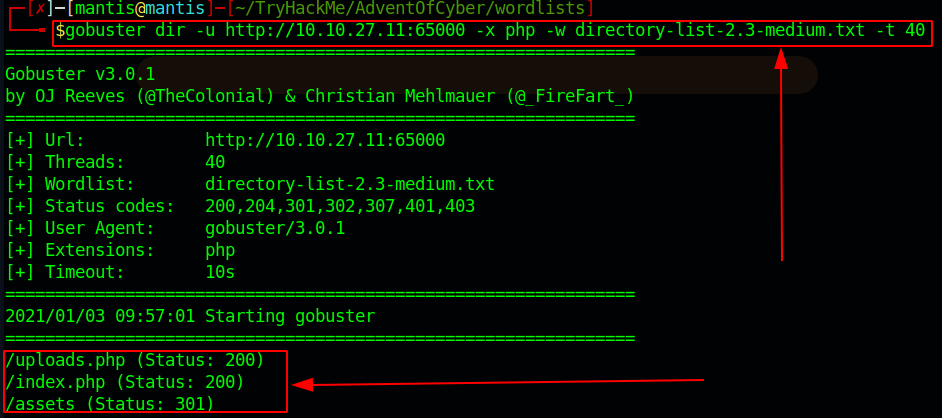
Gobuster scan:
/assets
/login.php
/robots.txt

Findings:
Found Username: R1ckRul3s in page source
Found Wubbalubbadubdub in robots.txt

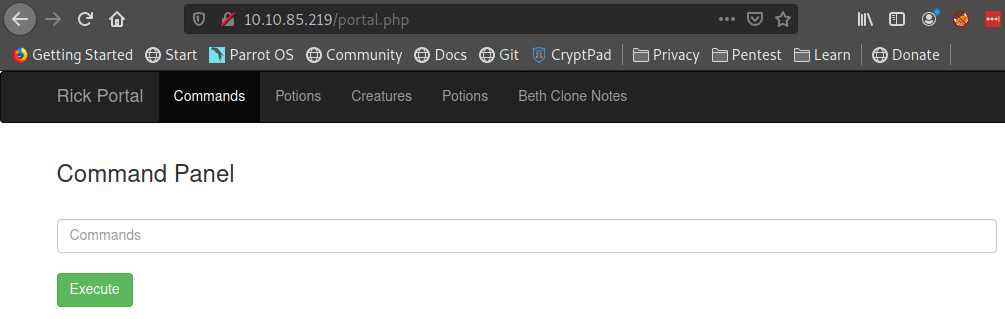
Logged in w/ cred to /portal.php

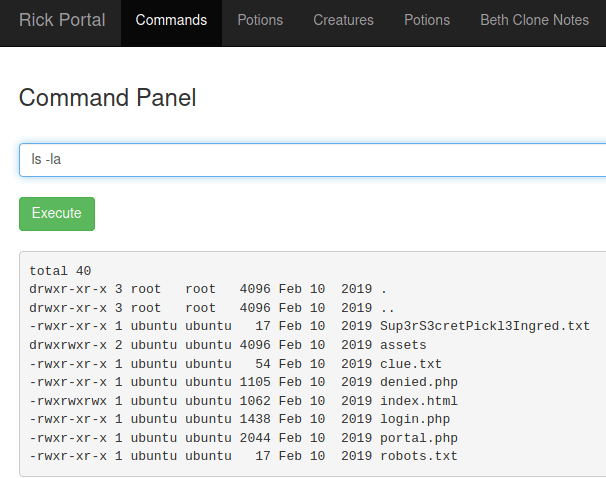
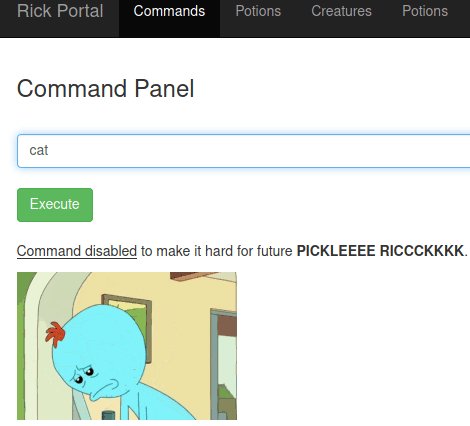
You can execute some commands but not others

When the .txt is entered in the URL we get the first ingredient

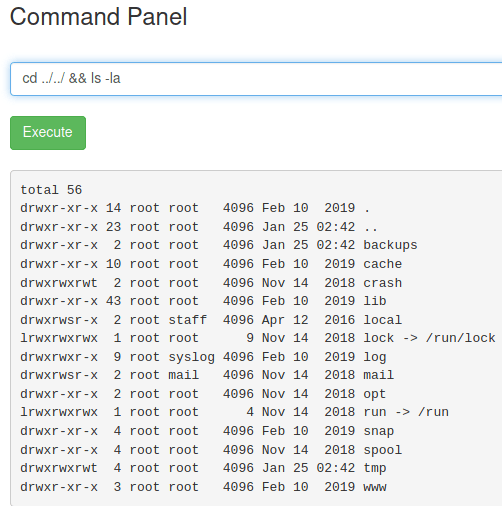
The clue.txt says to look around some more

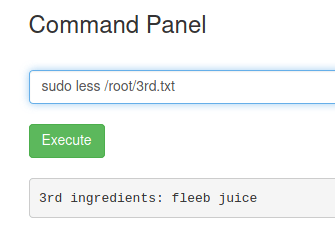
using sudo and less I was able to find the 3rd flag

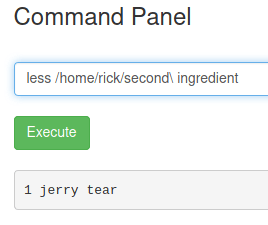
the 2nd was in ricks home folder